

A feature that was recently introduced in Google Analytics 4 (GA4) that was a staple of the old Google Universal Analytics (UA) is the ability to have Google Analytics send email reports. You configure your report as you want and an email is sent automatically on an ongoing basis: daily, weekly, monthly, or quarterly.
Selecting the Report to Email
In order to have a report emailed automatically, you must first select a report that you want to use. You can either use a custom report that you created yourself or you can use one of the many default reports provided within GA4. Note that if you don’t see the report you are looking for in your collection (menu) of reports, click on Library and either publish one of the default Collections provided by Google OR simply edit it to add one of the default reports.
Configuring the Email
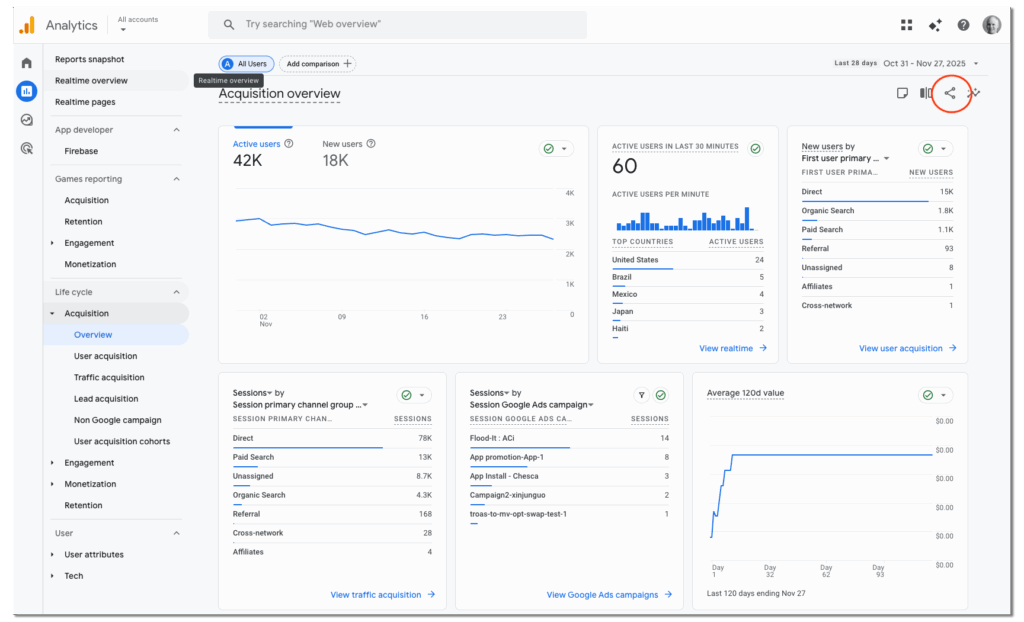
Once you have selected the report you want to have automatically emailed, click the Share button at the top right
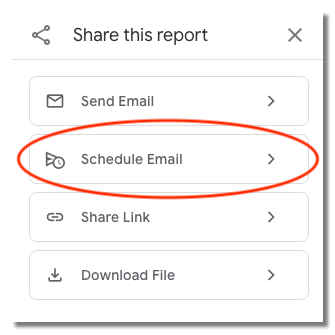
Then click on Schedule Email
The following dialog will open up:
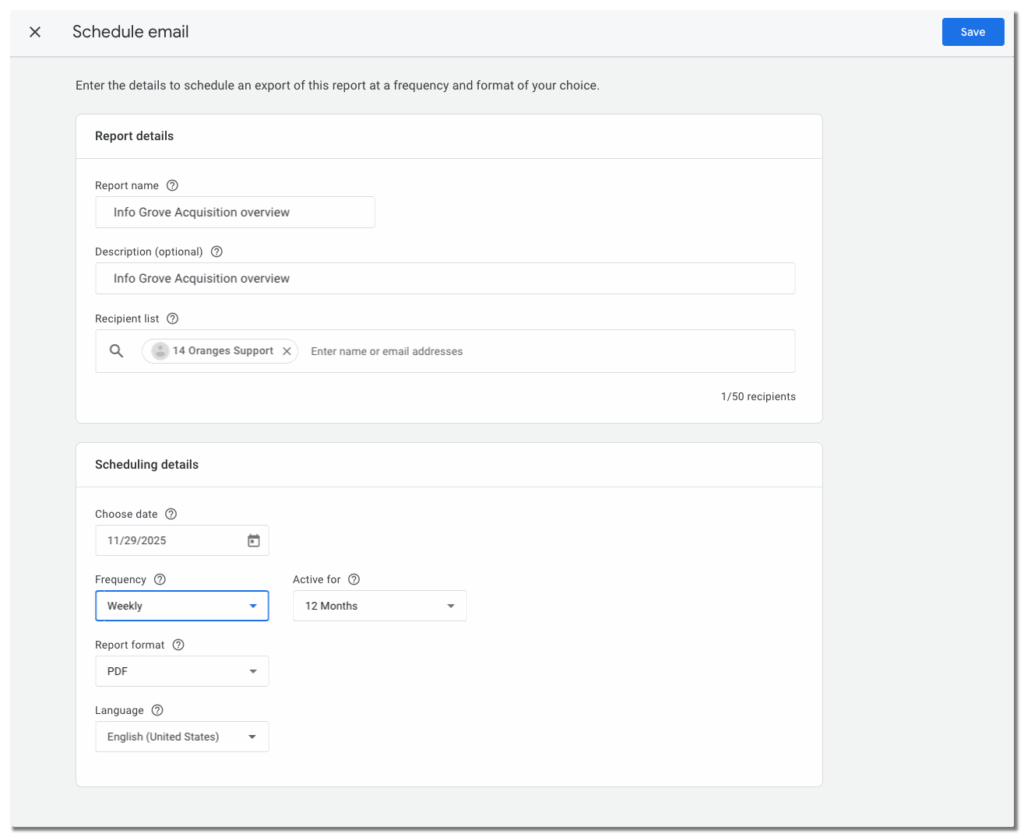
Enter the required fields and select the recipient(s) from the Recipient list.
At the moment, emailing reports are only valid for up to 12 months. You will then have to remember to re-create them to continue after that.
Click Save.
That’s it. You will now be receiving the reports at the frequency you selected.
Removing The Email
If you decide that you no longer want to receive a certain report via email, you can do so by going into the Admin panel. Click on the Gear icon at the bottom left and then click on Scheduled emails under the Property Settings section. Click the 3 dots to the right of the report you want to remove and click Delete.
Share This Article