

I’ve been doing a lot of Elementor training sessions lately with customers who are getting started with WordPress and Elementor. Elementor is our go-to page builder at 14 Oranges because it’s highly customizable, fast, and has great drag and drop functionality. So here are some of the tips I find myself repeating the most during our training sessions.
Get Familiar with the Structure Panel
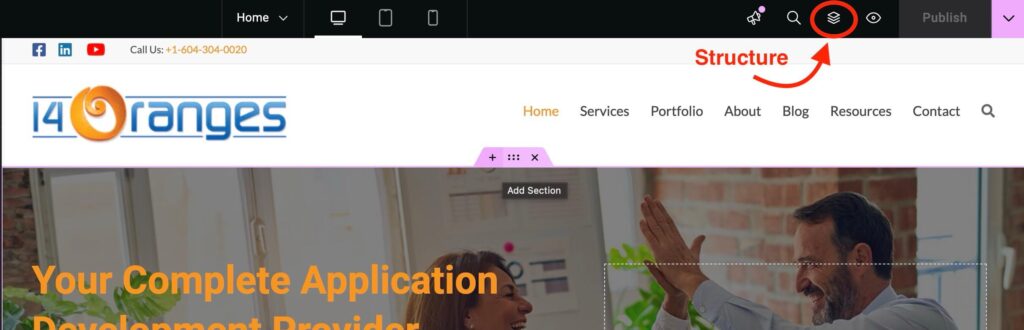
The structure button (the layers icon on the top of the editor) gives you a full breakdown of every section and element on your page.
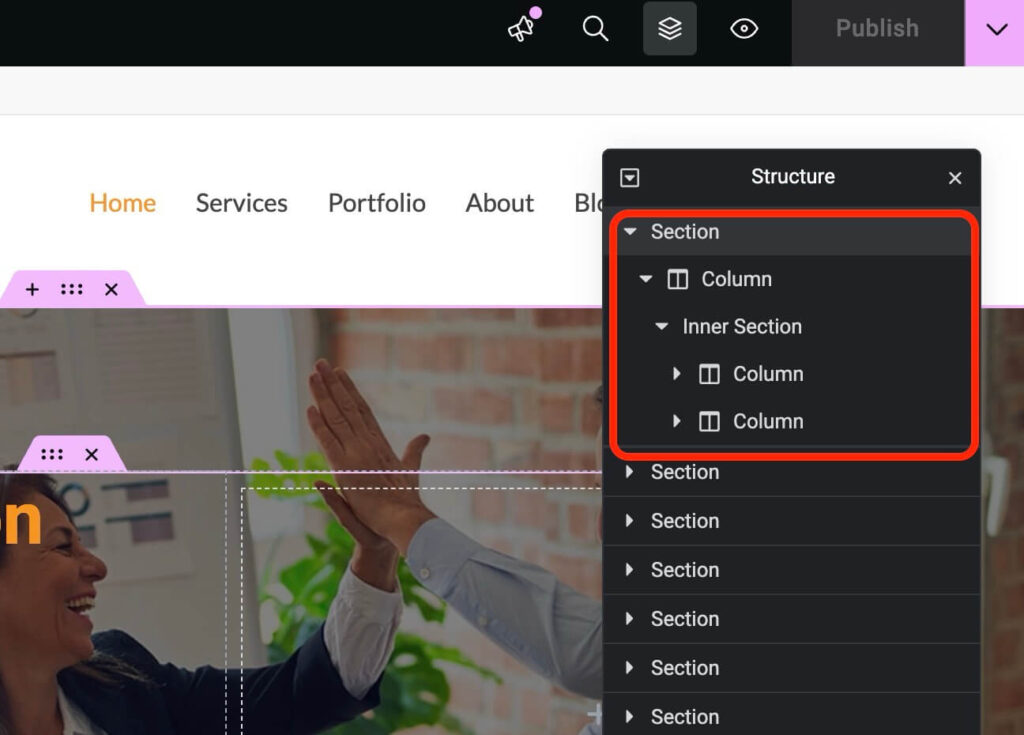
You can see the nesting, the hierarchy of the sections and elements that create your page. When your page starts getting complex, the Structure panel is how you stay organized instead of clicking around trying to find that one column or container. That said, try to keep things clean in there. If you’re building everything inside one giant section, things can get messy fast. It’s better to break your content into multiple logical sections. Breaking things up makes rearranging sections and content easier and keeps that Structure panel useful. You can learn more about the Structure panel here.
Duplicate, Don’t Rebuild
If you already have a section (or even a page) that looks the way you want, duplicate it. Duplicating keeps your spacing, margins, fonts and colours consistent without you even thinking about it. You can even copy an element on one page and paste it on a completely different page. Just right-click the section or element to copy it.
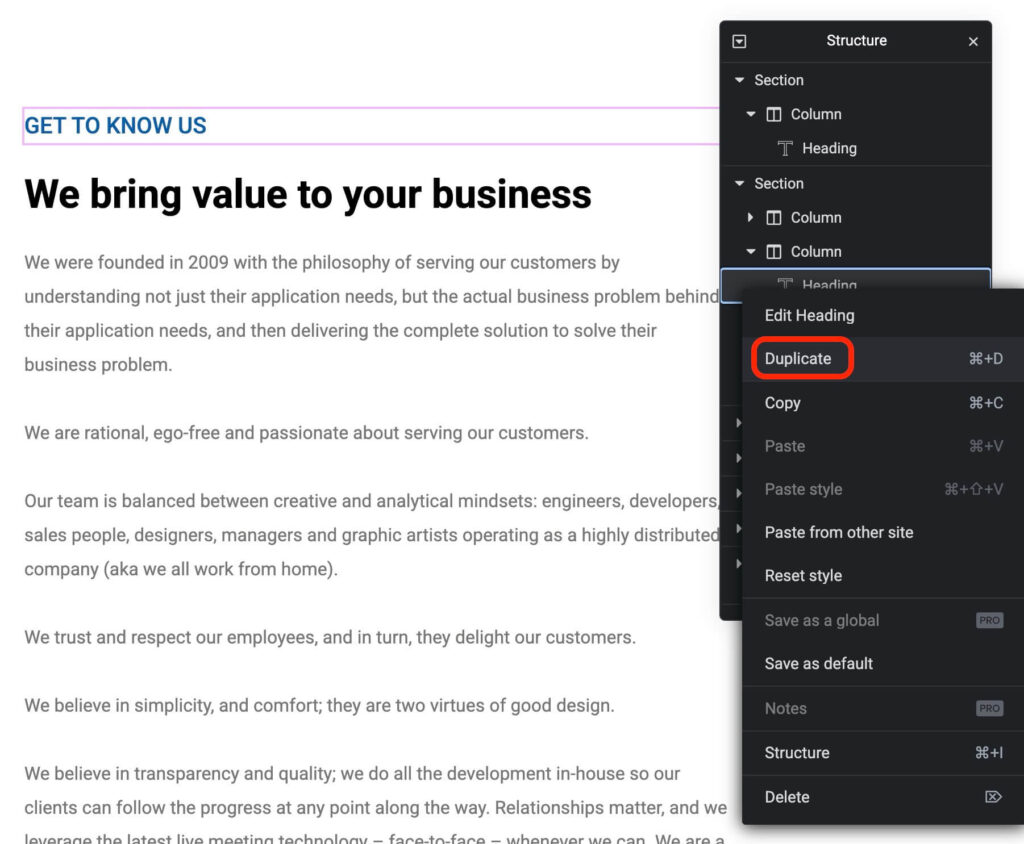
Duplicating is way faster than rebuilding elements and sections from scratch. It also helps you avoid one of the most common issues I see, which is picking random fonts, font sizes and colours for one-off sections. When you duplicate, you carry over all the existing styling, so you naturally stay within your design guidelines. Stick to what’s already on the site and things will look way more polished. Here is a quick video on how to duplicate a section or element in Elementor.
Use Your Safety Nets
Elementor has two features that should make you feel comfortable experimenting. The first is the History panel.
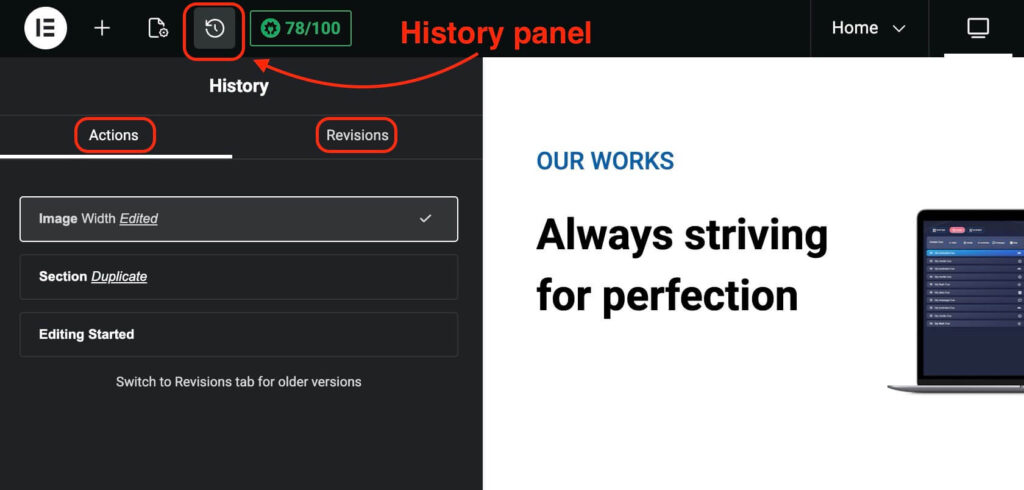
You’ve got Actions (your recent edits) and Revisions (full snapshots of the page). I use these constantly. Made a change and it looks wrong? Just roll back to a previous action. Publish a change that you need to reverse? Revert to a previous revision. It’s the ultimate undo button.
The second is the preview button.
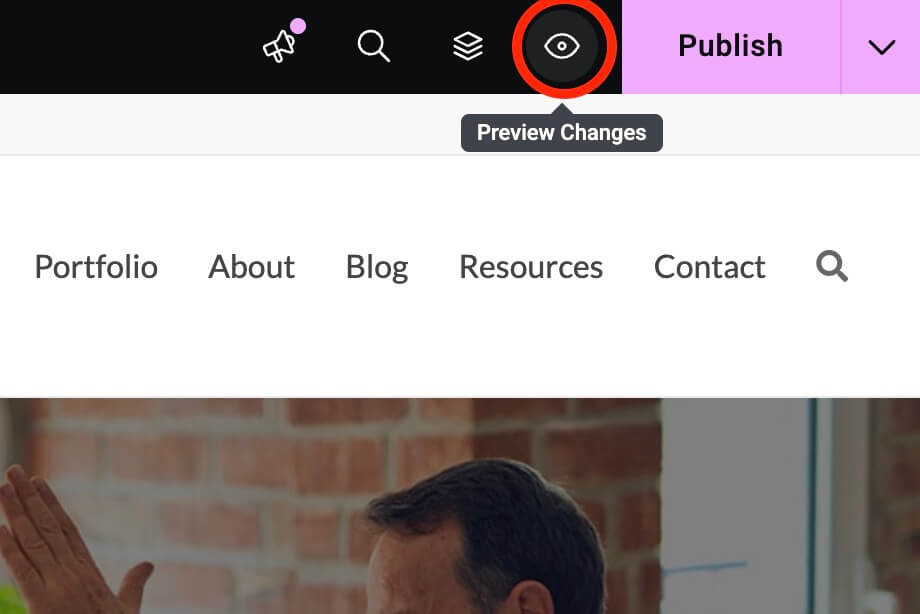
It’s a good idea to always preview your changes before you publish them. Sometimes there’s custom CSS or theme styling that doesn’t show up inside the Elementor editor, and previewing the page gives you the real picture before it goes public. Even if you do publish and spot something wrong, you can always revert to a previous revision using the History panel.
Check Your Responsive Previews
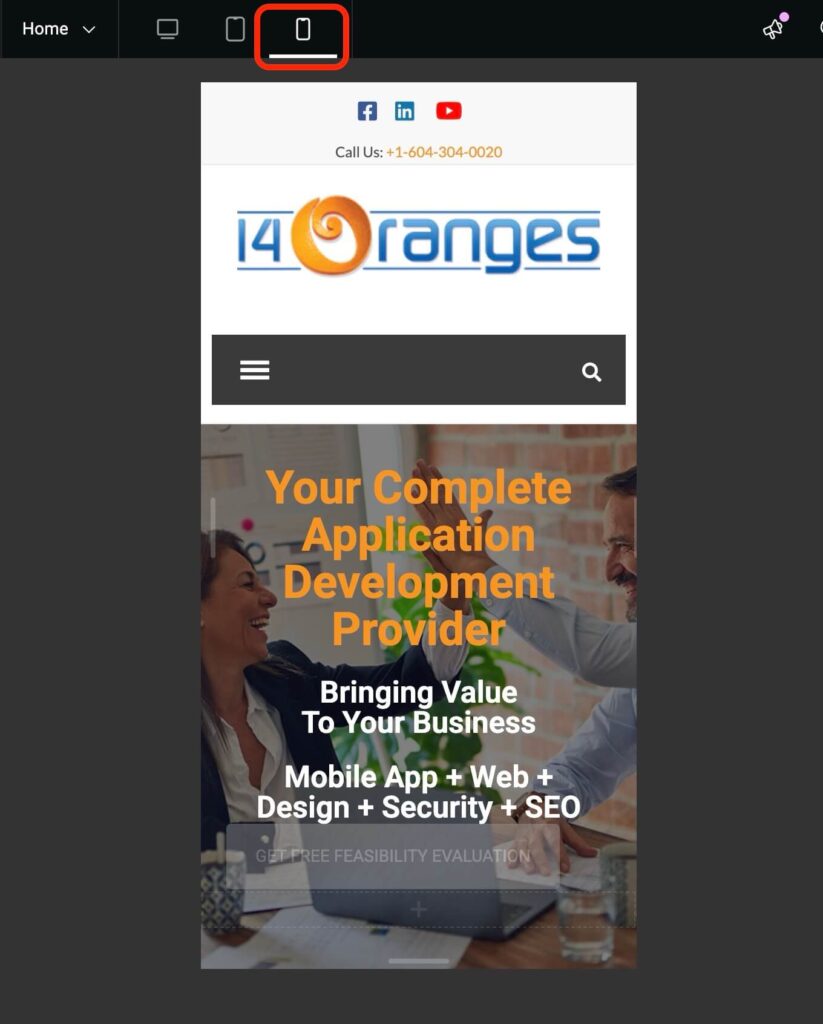
Elementor lets you toggle between desktop, tablet and mobile views right in the editor. Responsive editing allows you to switch views and preview how your page will look on various devices. When you switch views, you’ll notice a little device icon next to certain style settings. That tells you the styling is specific to that breakpoint (device size). Something that looks great on a desktop can look totally off on a smaller screen, and the responsive preview is where you catch it.
Keep Addons to a Minimum
There are tons of third-party Elementor widget packages out there, but adding too many can slow your site down, cause conflicts with necessary plugins, and make styling inconsistent. Elementor is powerful out of the box and it’s rare that you actually need an addon. Most themes already require specific addons to function properly, so there usually isn’t a reason to pile more on top.
Final Thoughts
To recap, get comfortable with the Structure panel to keep your pages organized. Duplicate sections and elements instead of rebuilding them to stay consistent. Lean on the History panel and preview feature so you can experiment without worry, and always check your responsive previews before publishing. Try not to overload your site with unnecessary addons. Elementor has a bit of a learning curve, but once you get comfortable with these features, editing your site becomes a lot less stressful. If you have any questions, don’t hesitate to reach out to our team.
Share This Article